Alert - Osko payments: We’ve identified an issue affecting a small number of customers who attempted to make Osko payments in the afternoon of Thursday 15 January. If you attempted a transfer during this time, please call us on 1300 747 747 Monday to Friday 7am-7pm and Saturday 9am-5pm (AEDT) for assistance.
Emergency Assistance: We’re concerned for the safety and wellbeing of the people and communities affected by the Victorian bushfires and Queensland floods. We’re here to help – assistance is available for affected customers. Learn more.

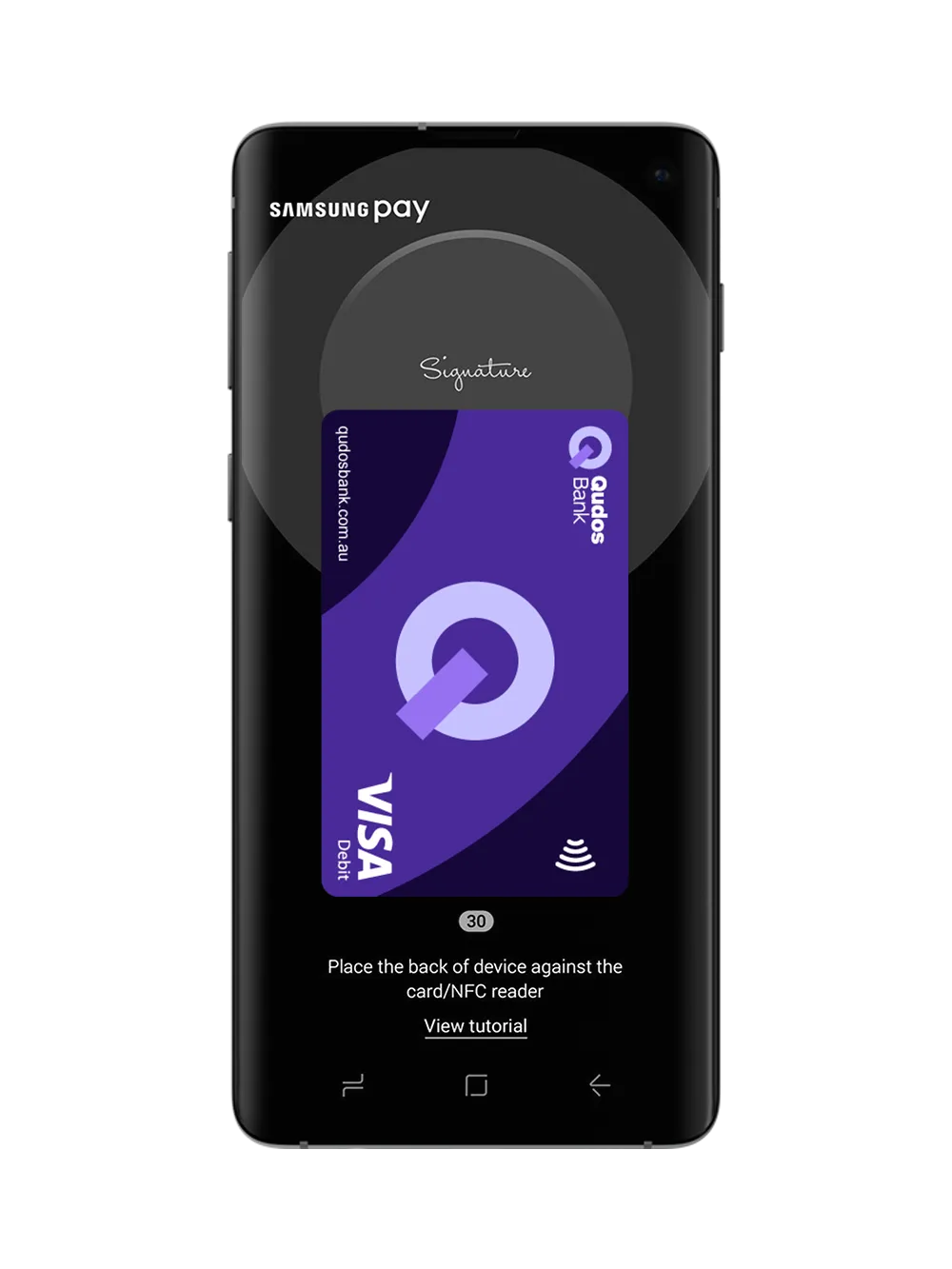
Add your Qudos Bank card in these simple steps:
Open the Samsung Pay app and sign in with your Samsung ID.
Register your fingerprint and device passcode which you’ll use to authorise payments. Members with an S8, Note8, S9, Note9 can also scan their irises for iris authentication.
Scan or enter your Qudos Bank Visa debit or credit card details.
Verify your card details and enter the verification code.
For more information visit https://www.samsung.com/au/apps/samsungpay/
If you are using a compatible Samsung device:
If you are using a non-Samsung device:
To successfully add a card to Samsung Pay you will need to ensure that:
For more related frequently asked questions, visit our FAQs page.
Samsung Pay Terms and Conditions apply.
The advice on this website has been prepared without considering your objectives, financial situation or needs. Because of that, you should, before acting on the advice, consider its appropriateness to your circumstances. Please consider the Terms and Conditions for Savings Accounts and Payment Service applicable to Visa Debit cards. Please consider our Financial Services Guide. Credit Card applications are subject to credit approval. Full terms and conditions will be included in our loan offer. Fees and charges apply.